Inbox
Your unified notification feed — all mentions, assignments, comments, and updates in one place.
The Inbox collects every notification that matters to you in a single, focused view. Instead of checking individual projects or issues, you come here first to see what needs your attention.
Accessing the inbox
Click Inbox in the left sidebar, or press G then I anywhere in the app to jump straight to it.
Notification types
Clave sends notifications for the following events:
| Type | What triggers it |
|---|---|
| Issues | You're assigned to an issue, a status changes on an issue you follow |
| Mentions | Someone @mentions you in a comment or description |
| Comments | A new comment is posted on an issue or document you're involved with |
| Projects | A project update is posted for a project you're a member of |
| Documents | A document you have access to is shared or commented on |
| Whiteboards | A whiteboard is updated |
| Reminders | Due date approaching, overdue, or stale issue alerts |
The inbox layout
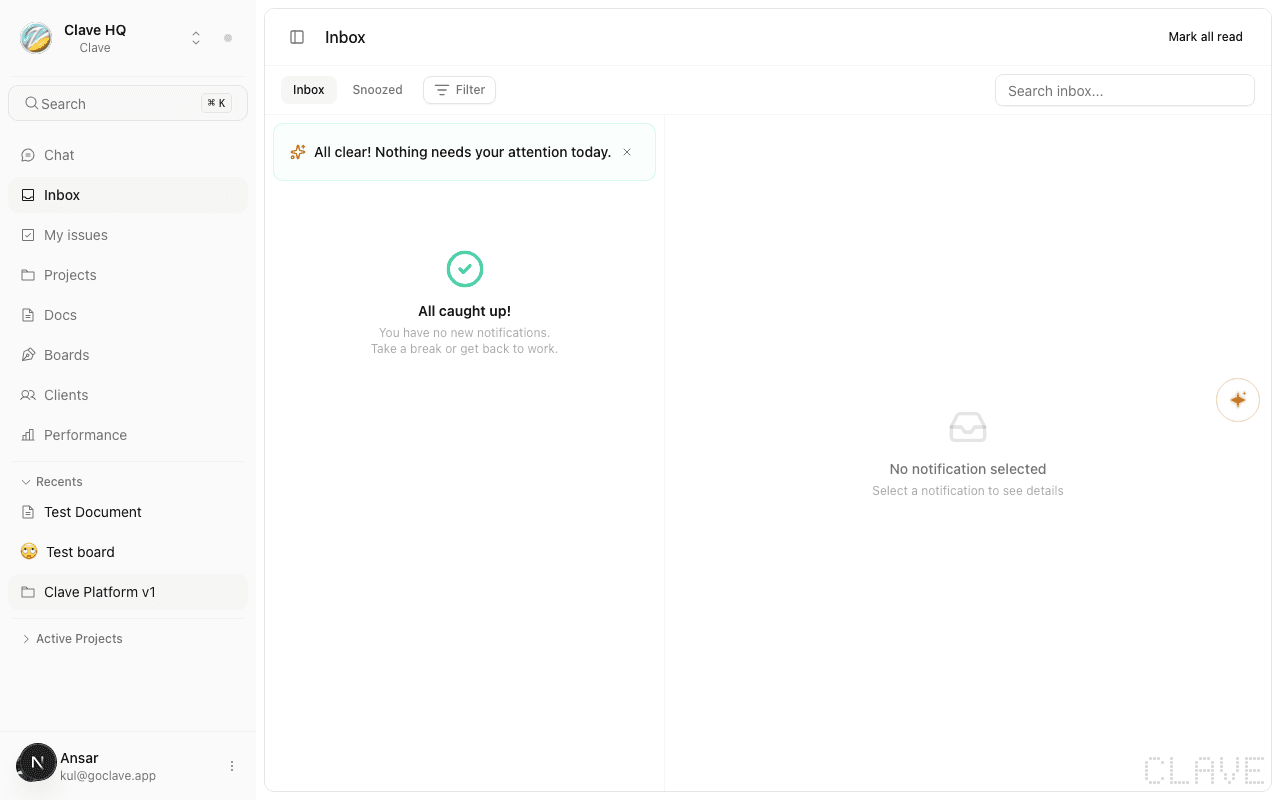
The inbox is split into two panels.
Left panel — a scrollable list of your notifications. Each item shows the actor's avatar, what they did, the relevant item title, and how long ago it happened. Unread notifications have a small dot on the left edge.
Right panel — a preview of the selected notification. For issue notifications you can update status, priority, assignee, and project directly from this panel without navigating away.
Reading notifications
Click any notification in the list to select it. Clave automatically marks it as read when you open it.
To manually toggle read/unread on the selected notification, press U.
To mark all notifications as read at once, click Mark all read in the header, or press Alt+U.
Filtering notifications
Click the Filter button (next to the Inbox tab) to narrow down what you see:
- Type — choose one or more: Issues, Comments, Mentions, Projects, Documents, Whiteboards, Reminders
- Status — All notifications, Unread only, or Read only
Filters are applied immediately. Click Apply to confirm or Clear to remove all filters.
You can also search notifications using the search bar in the top-right of the inbox. Press Cmd+F to focus it.
Snoozed notifications
The Snoozed tab shows notifications you've deferred. Switch to it by clicking the tab or pressing the snooze button on any notification.
To snooze a notification, hover over it and click the clock icon. Choose a preset:
- 1 hour
- 3 hours
- Tomorrow morning (9:00 AM)
- Next Monday morning (9:00 AM)
- Custom date and time
Snoozed notifications disappear from the main inbox until the snooze time arrives, then reappear automatically. Press H as a shortcut to snooze the selected notification for 1 hour.
Archiving and deleting
Archive — moves the notification out of the active inbox without deleting it. Press E to archive the selected notification.
Delete — permanently removes the notification. Press Backspace or Delete to delete the selected notification.
To delete all visible notifications at once, press Shift+Backspace.
To delete all read notifications, press Cmd+D (or Ctrl+D on Windows/Linux).
AI smart digest
At the top of the inbox you'll see the AI digest card. This is a short AI-generated summary of your unread notifications — what changed, what needs attention, and what can wait. The digest refreshes each time you open the inbox with new unread items.
Inbox keyboard shortcuts
| Shortcut | Action |
|---|---|
| J / ↓ | Move selection down |
| K / ↑ | Move selection up |
| U | Toggle read/unread |
| H | Snooze 1 hour |
| E | Archive |
| Backspace | Delete selected |
| Shift+Backspace | Delete all visible |
| Cmd+D | Delete all read |
| Alt+U | Mark all read |
| Cmd+F | Focus search |
Issue shortcuts (S, A, P, L) also work in the inbox when an issue notification is selected — they update the issue without leaving the inbox.