Signing up
Create your Clave account using Google or email and password.
Create your account
Clave supports two ways to sign in: Google OAuth and email/password. You can create a new account or sign in to an existing one on the same screen.
Navigate to the Clave sign-in page. You will see the Clave logo and a sign-in form.
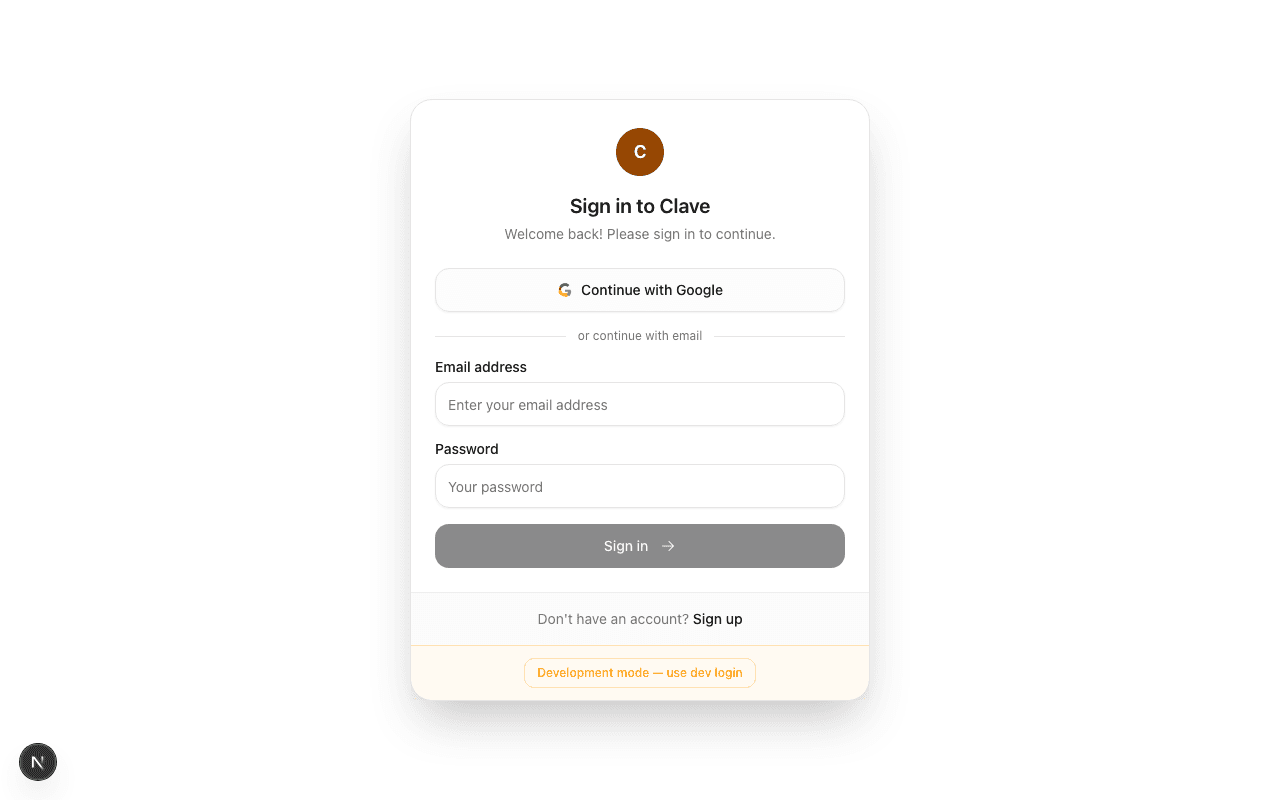
Sign in with Google
Signing in with Google is the fastest way to get started.
- Click Continue with Google.
- A Google sign-in popup or redirect will open.
- Select the Google account you want to use.
- Grant Clave the requested permissions.
You are signed in and redirected to the organizations page.
Sign in with email and password
If you prefer not to use Google, you can sign in with an email and password.
Create a new account
- Click Sign up at the bottom of the sign-in card.
- Enter your name, email address, and a password (at least 6 characters).
- Click Create account.
You are signed in and redirected to the organizations page.
Sign in to an existing account
- Enter your email address and password.
- Click Sign in or press Enter.
If your credentials are correct, you are redirected to the organizations page.
What happens after signing in
After your first sign-in, Clave takes you to the Organizations page. From here you can:
- Create a new organization to set up your team's workspace.
- Join an existing organization if you have an invite code from a teammate.
See Creating an organization to continue.
Welcome to Clave
Clave is an AI-native project management and collaboration platform. This guide covers everything you need to know to get started and get the most out of Clave.
Creating an organization
Organizations are the top-level container in Clave. Set up your organization to get your team started.