Navigating the app
Learn the Clave sidebar, workspace selector, command palette, and keyboard shortcuts to move around the app quickly.
The sidebar
The left sidebar is your main navigation in Clave. It is always visible while you are inside a workspace.
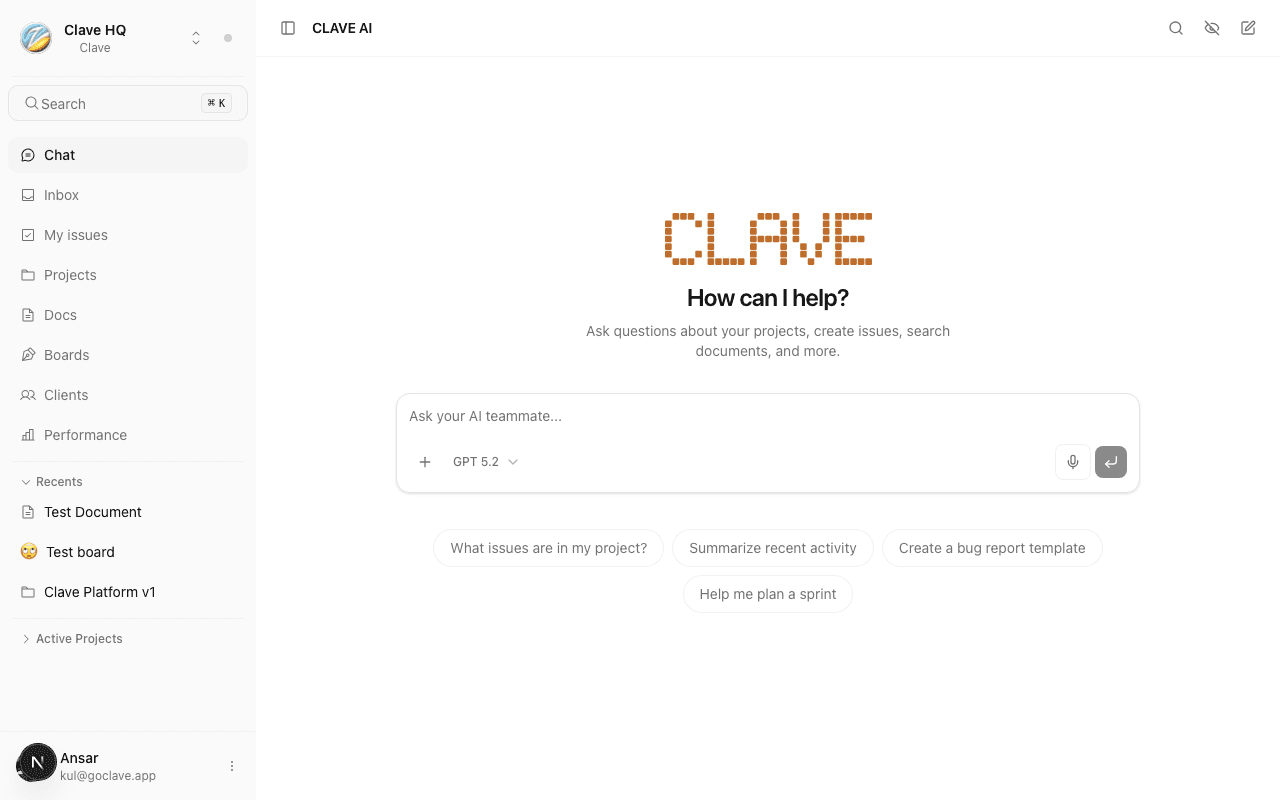
Workspace selector
At the very top of the sidebar is the workspace selector. Click it to:
- Switch between workspaces within the current organization.
- Switch to a different organization.
- Create or join a new workspace.
Main navigation
Below the workspace selector, the sidebar lists the primary areas of your workspace:
| Section | What it contains |
|---|---|
| Chat | AI chat threads for your workspace |
| Inbox | All notifications and @mentions |
| My issues | Issues assigned to you |
| Projects | All projects in the workspace |
| Docs | Documents and rich-text files |
| Boards | Whiteboards and diagrams |
| Clients | CRM contacts and client records |
| Performance | Analytics and workspace metrics |
A badge on Inbox shows your unread notification count.
Recents
The Recents section tracks the last items you visited — issues, documents, projects, boards, and chat threads. Click any item to jump back to it.
Click the Recents label to collapse or expand this section.
Favorites
Items you have starred appear in the Favorites section. You can star projects, documents, whiteboards, and clients. Favorites persist across sessions so your most-used items are always one click away.
Active Projects
The Active Projects section lists projects that are currently in progress. Click a project to open its dashboard directly from the sidebar.
User menu
At the bottom of the sidebar, click your avatar or name to open the user menu. From here you can:
- Access account settings.
- Go to workspace settings.
- Sign out.
Collapse the sidebar
Click the collapse toggle (the arrow at the edge of the sidebar) to collapse it to icon-only mode. In icon-only mode, hover over any icon to see a tooltip with the section name.
Click the toggle again to expand the sidebar.
Search
The Search bar at the top of the sidebar (below the workspace selector) lets you quickly find items across the workspace. Click it or press Cmd+K to open the command palette.
Command palette
The command palette is the fastest way to navigate and take action in Clave. Open it with Cmd+K (Mac) or Ctrl+K (Windows/Linux).
From the command palette you can:
- Jump to any project, document, issue, or board.
- Create a new issue, document, or board.
- Run AI actions.
- Access settings.
Start typing to filter results. Use arrow keys to select and Enter to navigate.
Keyboard shortcuts
| Action | Shortcut |
|---|---|
| Open command palette | Cmd+K |
| Open AI chat | Cmd+J |
| Search | Cmd+K |
More keyboard shortcuts are available in Keyboard shortcuts.
Switching organizations
To switch to a different organization, click the workspace selector at the top of the sidebar and choose Switch organization. You are taken to the Organizations page where you can click any org to enter it.