Comments and Threads
Add inline comments and threaded discussions to any document.
Comments let you annotate specific passages in a document and have threaded discussions without editing the document text itself.
Open the comments sidebar
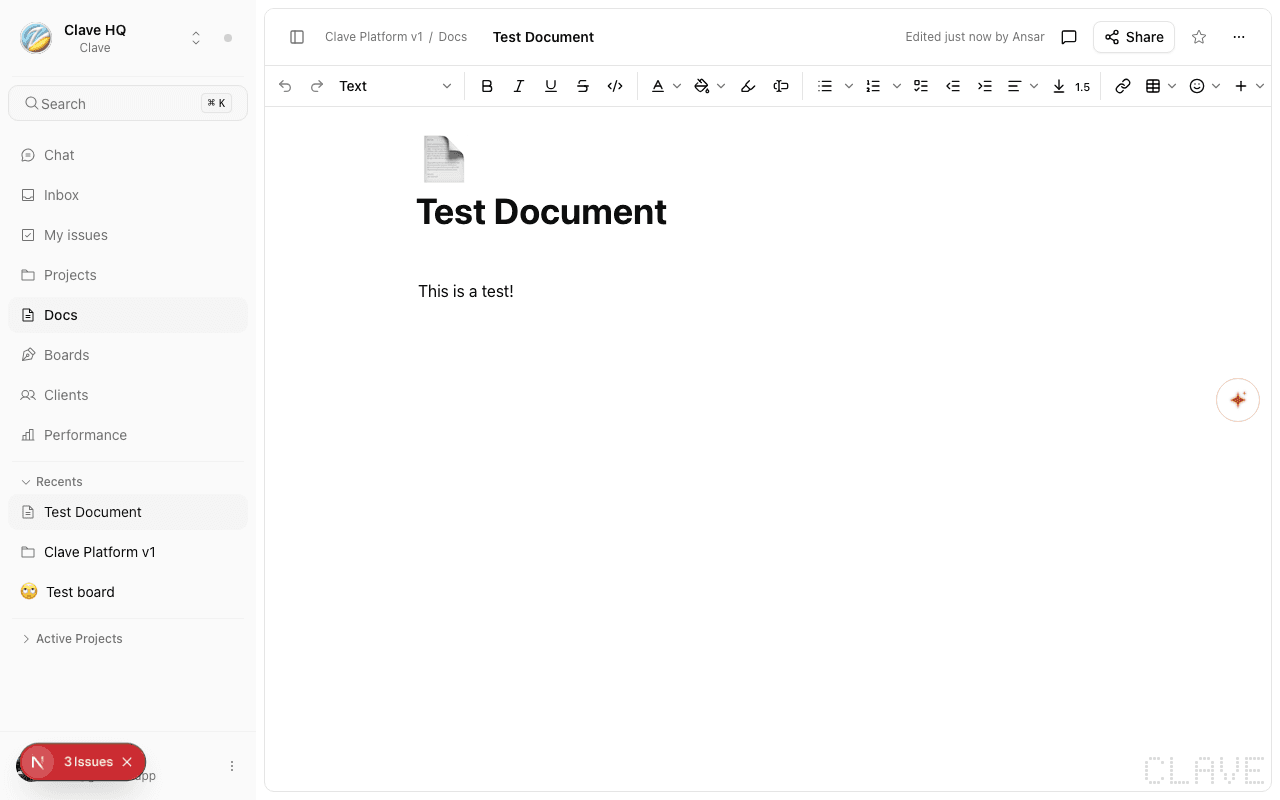
Click the comment bubble icon (💬) in the document header to open the Comments sidebar. The sidebar slides in from the right and shows all comment threads for the document.
You can also click Add comment in the button row below the document title (visible when hovering over the hero area).
Add a comment
- Select text in the document body that you want to comment on.
- A floating toolbar appears above your selection. Click the comment icon in the toolbar.
- The comment input appears. Type your comment.
- Press Enter or click Submit to post.
The selected text becomes highlighted, and the comment appears in the sidebar.
Comment threads
Each comment starts a thread. A thread can have multiple replies from any workspace member.
To reply to a thread:
- Click the thread in the sidebar to open the thread detail view.
- Type your reply in the input field at the bottom.
- Press Enter to post.
@mentioning teammates
In any comment or reply, type @ followed by a teammate's name to mention them. They'll receive a notification in their Inbox.
Edit or delete a comment
Hover over your own comment to reveal the edit (pencil) and delete (trash) icons.
- Edit — Opens the comment for editing. Save with Enter.
- Delete — Removes the comment. Deleted comments cannot be restored.
Resolve a thread
When a comment thread has been addressed, you can mark it resolved:
- Open the thread in the sidebar.
- Click the Resolve button (checkmark icon).
Resolved threads are shown with reduced opacity in the sidebar. They remain visible so you have a record of past discussions.
To reopen a resolved thread, click the thread and click Unresolve.
Thread sorting
In the comments sidebar, threads are sorted with unresolved threads first, then by creation time (newest first). This keeps active discussions at the top.
Comments notifications
When a teammate @mentions you in a document comment, you receive a notification in your Inbox. You can click the notification to jump directly to the document and the relevant thread.