Creating a workspace
Workspaces are where your team's work lives. Each workspace has its own projects, issues, documents, boards, and settings.
What is a workspace?
A workspace is a shared environment within an organization. It contains all your team's work: projects, issues, documents, whiteboards, tasks, and more. You can have multiple workspaces in one organization — for example, one for engineering and one for design.
Workspaces have their own member lists, settings, and AI context.
Create a workspace
From the Organizations page, click an organization to open it. You will see a list of workspaces within that org.
-
Click New workspace (or the + button).
-
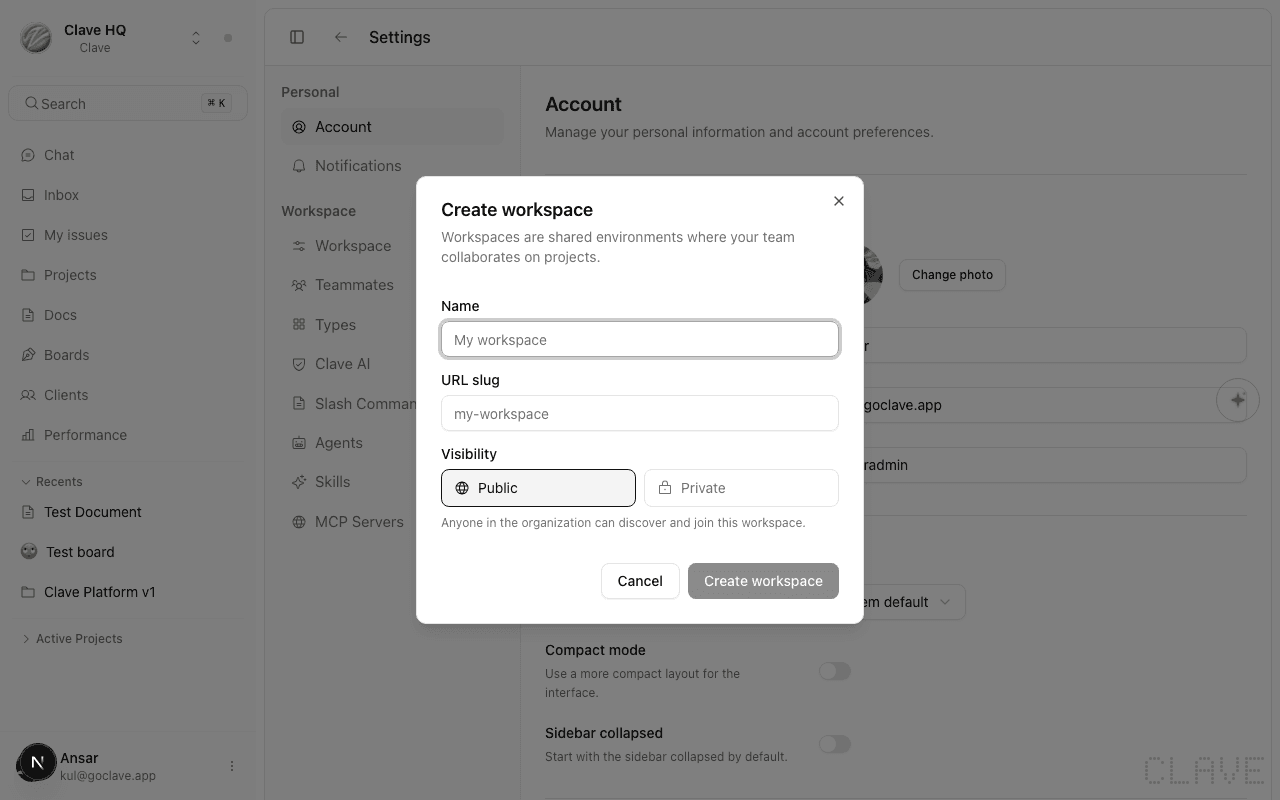
A dialog opens asking for:
- Name — The display name for the workspace (e.g., "Engineering" or "Product Q2").
- URL slug — A short identifier used in URLs (e.g.,
engineering). Generated from the name automatically.
-
Click Create workspace.
You are taken directly into the new workspace, starting at the Projects view.
Organization vs. workspace — what's the difference?
| Organization | Workspace | |
|---|---|---|
| Purpose | Groups workspaces, manages billing and team membership | Where actual work happens |
| Contains | Workspaces and members | Projects, issues, docs, boards, tasks |
| Settings | Members, invite codes, billing | Projects, integrations, AI, custom statuses |
Think of the organization as your company account, and the workspace as a specific team's environment within that company.
Switch between workspaces
The workspace selector sits at the top of the left sidebar. Click it to see all workspaces you have access to, and click any workspace to switch to it.
You can also switch organizations from the same menu to access workspaces in a different org.