AI Chat
How to use the AI chat sidebar and dedicated chat page in Clave.
The AI chat is your main interface for talking with Clave's AI. You can open it as a sidebar from anywhere in the app, or navigate to a dedicated full-page chat view with a thread browser.
Opening the chat
Sidebar — Press Cmd+J (Mac) or Ctrl+J (Windows/Linux) to toggle the AI chat sidebar. It opens on the right side of the current page, leaving your work visible.
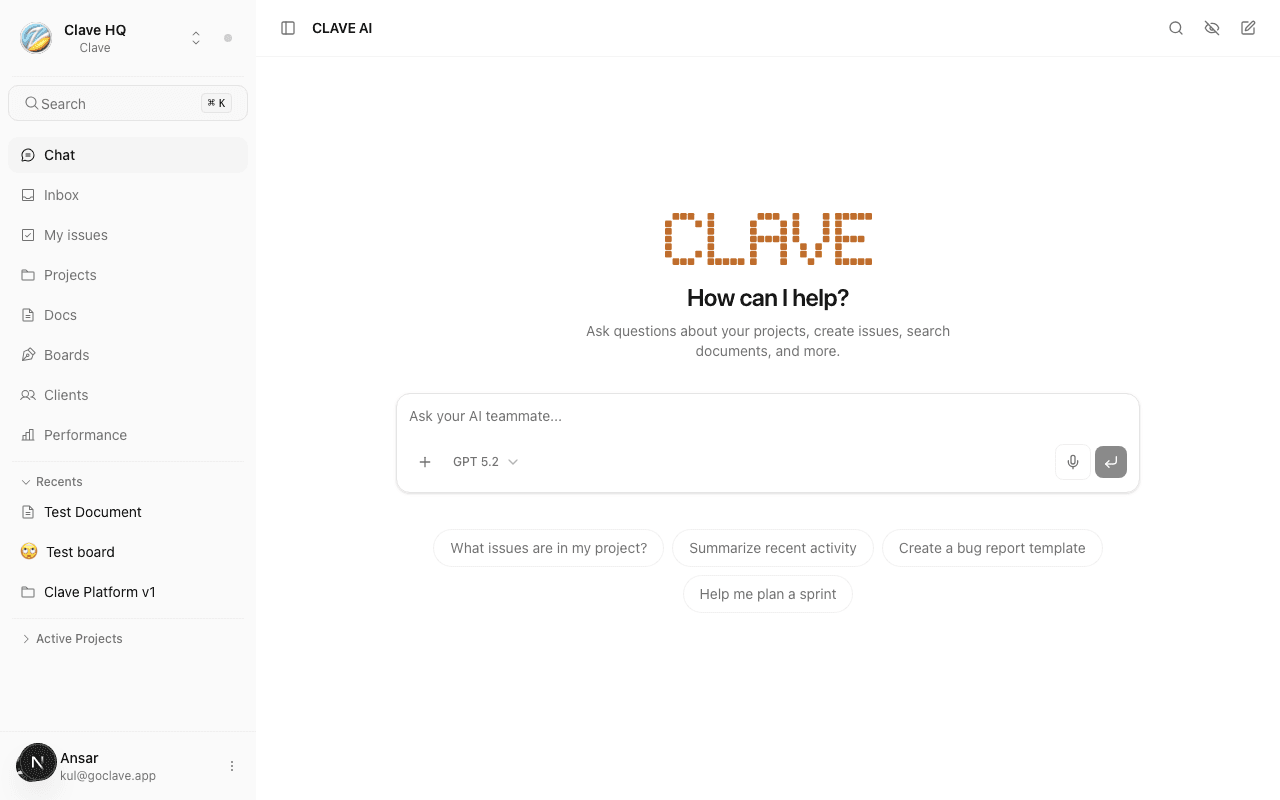
Full page — Navigate to Chat in the workspace sidebar to open the dedicated chat page. This gives you more space and a thread browser on the left.
Starting a conversation
When you open a fresh chat, you see a welcome screen with suggested prompts. Type your question or request in the input field at the bottom and press Enter to send.
The AI responds in real time — text streams in token by token rather than appearing all at once.
To start a new conversation at any time, click the New chat icon (pencil square) in the top right of the chat header.
Thread browser
All your past conversations are saved as threads. Click the History icon in the chat header to open the thread browser. Your threads are listed by recency — click any thread to reopen it.
From the thread browser you can:
- Rename a thread — hover the thread and click the rename option
- Delete a thread — hover the thread and click the delete option
Choosing a model
A model selector appears at the bottom left of the chat input. Click it to switch between available models:
- GPT 5.2 — the default model, fast and well-suited for most tasks
- Kimi K2.5 — higher-capacity model for complex reasoning and longer context
Your model selection persists for the current conversation.
Context chips
When you are on a specific page (an issue, a document, a project), the AI automatically adds a context chip to the chat input. This tells the AI which item you are looking at, so you can ask questions like "summarize this" without specifying what "this" is.
You can remove a context chip by clicking the × on it.
Mentioning items
Type @ in the chat input to bring up a mention picker. Search for and select issues, documents, projects, or team members to include them as context in your message.
Artifacts
When the AI generates substantial content — code, a table, a markdown document — it renders it as an artifact card inline in the conversation. Artifact cards have a copy button and, for code, syntax highlighting.
For larger artifacts, click the expand icon on the card to open the artifact panel — a full side-by-side view that keeps the artifact visible while you continue the conversation.
Artifact types include:
- Code — syntax-highlighted code blocks with copy and language label
- Markdown — rendered rich text documents
- Tables — formatted data tables
- Diagrams — Mermaid diagrams rendered visually
MCP server connections
If your workspace has Model Context Protocol (MCP) servers configured, you can connect them to the chat. Click the MCP button in the chat input toolbar to pick a server. Connected MCP servers give the AI access to external tools and data sources defined by that server.
See Integrations — MCP servers for how to add MCP servers to your workspace.
Incognito mode
Incognito mode sends messages without saving the thread to your history. Click the incognito icon in the chat input area to enable it. A visual indicator shows when incognito is active.
Use incognito when you want to explore a question without it persisting in your thread history.
Approval cards
When the AI wants to take an action that affects your workspace — creating an issue, marking something done, or creating a project — it shows an approval card instead of acting immediately. The card describes the action. Click Approve to proceed or Reject to cancel.
Voice input
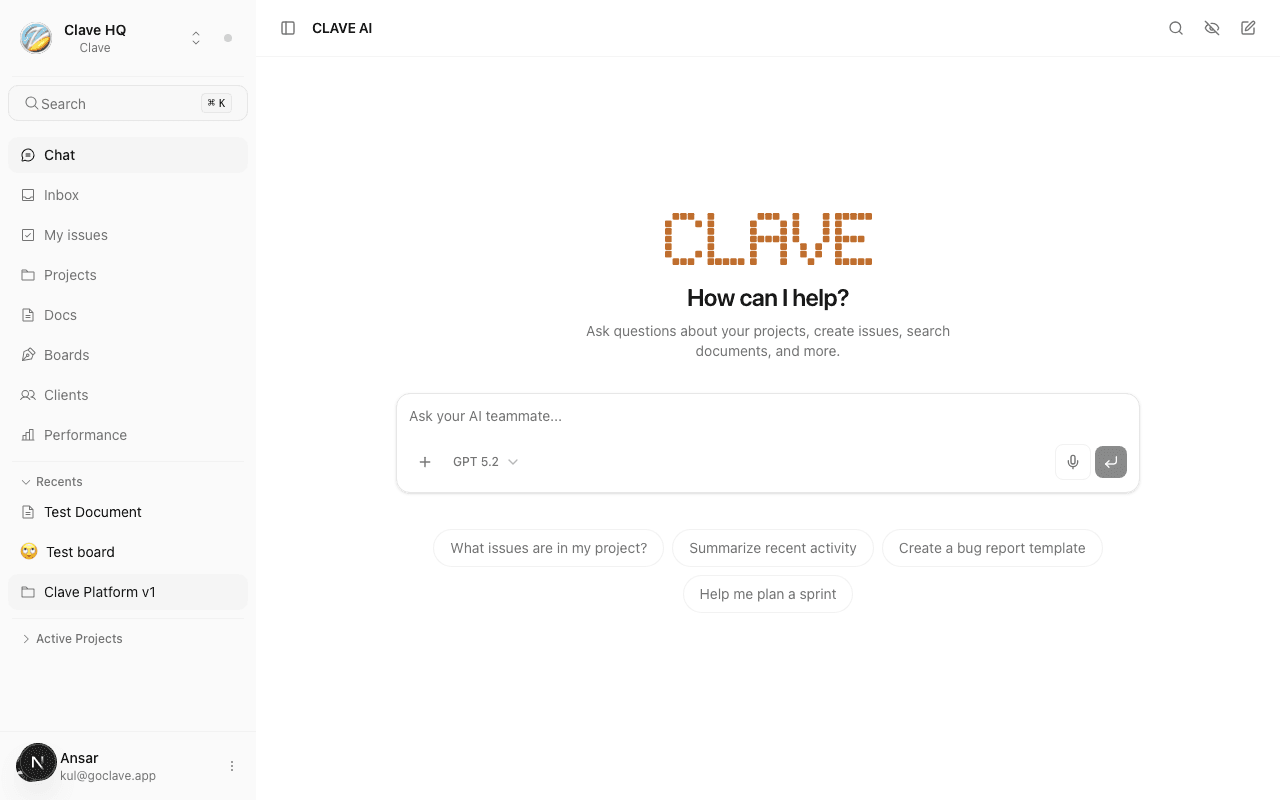
Click the microphone icon in the chat input (or press Cmd+Shift+V) to start voice recording. Speak your message, then stop recording. Your speech is transcribed and inserted into the chat input as text. See Voice for details.
Keyboard shortcuts
| Action | Shortcut |
|---|---|
| Toggle chat sidebar | Cmd+J |
| Send message | Enter |
| New line in input | Shift+Enter |
| Voice recording | Cmd+Shift+V |