Backlog
Manage and prioritize work that hasn't been assigned to a sprint yet.
The backlog is your holding area for issues that are planned but not yet committed to a sprint. It gives you a place to groom and prioritize upcoming work without cluttering your active sprint.
Accessing the backlog
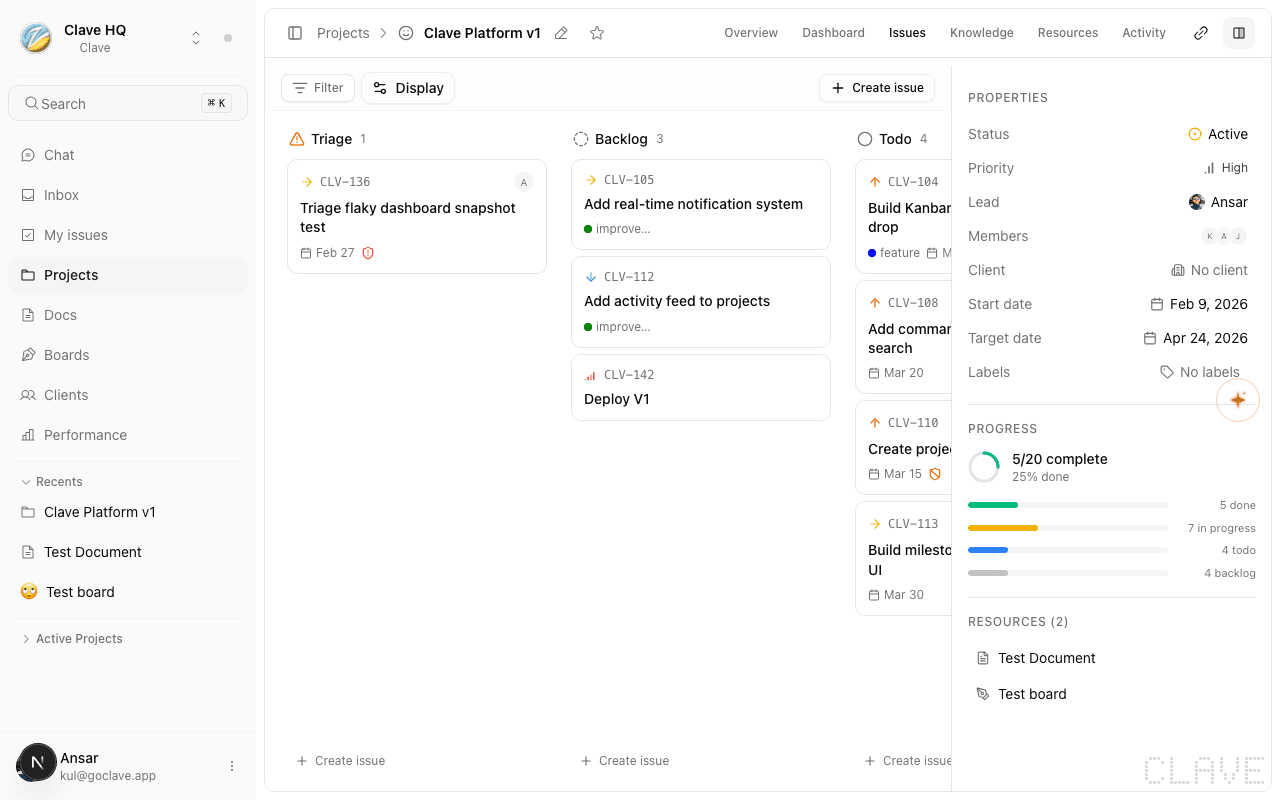
From a project, click the Issues tab. Issues that are not assigned to a sprint appear in the backlog section. If your project uses the Sprints methodology, you'll see a clear separation between sprint issues and backlog issues.
What goes in the backlog?
Any issue without a sprint assignment lives in the backlog. When you create a new issue without selecting a sprint, it automatically lands here. Issues can also be moved from a sprint back to the backlog by clearing their sprint assignment.
Managing backlog items
Prioritizing issues
Use the Priority field on each issue to communicate relative importance. You can update priority directly from the issue row in the list view by clicking the priority indicator, or from the issue detail page's properties sidebar.
Priorities available:
- Urgent — Needs immediate attention.
- High — Important but not blocking.
- Medium — Standard work.
- Low — Nice to have.
- No priority — Not yet evaluated.
Reordering issues
In list view with Manual ordering selected, you can drag issues to reorder them within the backlog. This lets you create a deliberate priority order for sprint planning.
Moving issues into a sprint
To promote a backlog issue into a sprint:
- Open the issue by clicking its title.
- In the properties sidebar, click the Sprint field.
- Select the target sprint from the picker.
- The issue moves out of the backlog and into that sprint.
You can also update the sprint from the list view by clicking on the sprint cell in the issue row.
Filtering the backlog
Use the Filter button in the issues toolbar to narrow down what you see. You can filter by:
- Status — Show only issues in specific statuses.
- Priority — Show only high or urgent items.
- Assignee — See issues assigned to a specific person.
- Label — Find issues with a particular label.
- Type — Filter by bug, feature, improvement, or issue.
Filters apply to the current view and persist while you're on the page.
Grouping and display options
Click the Display button (gear icon) in the toolbar to customize how the backlog is shown. You can:
- Group by status, priority, assignee, project, or sprint.
- Order by manual position, status, priority, creation date, or due date.
- Toggle sub-issues on or off to show or hide child issues inline.
- Toggle empty groups to hide groups with no issues.