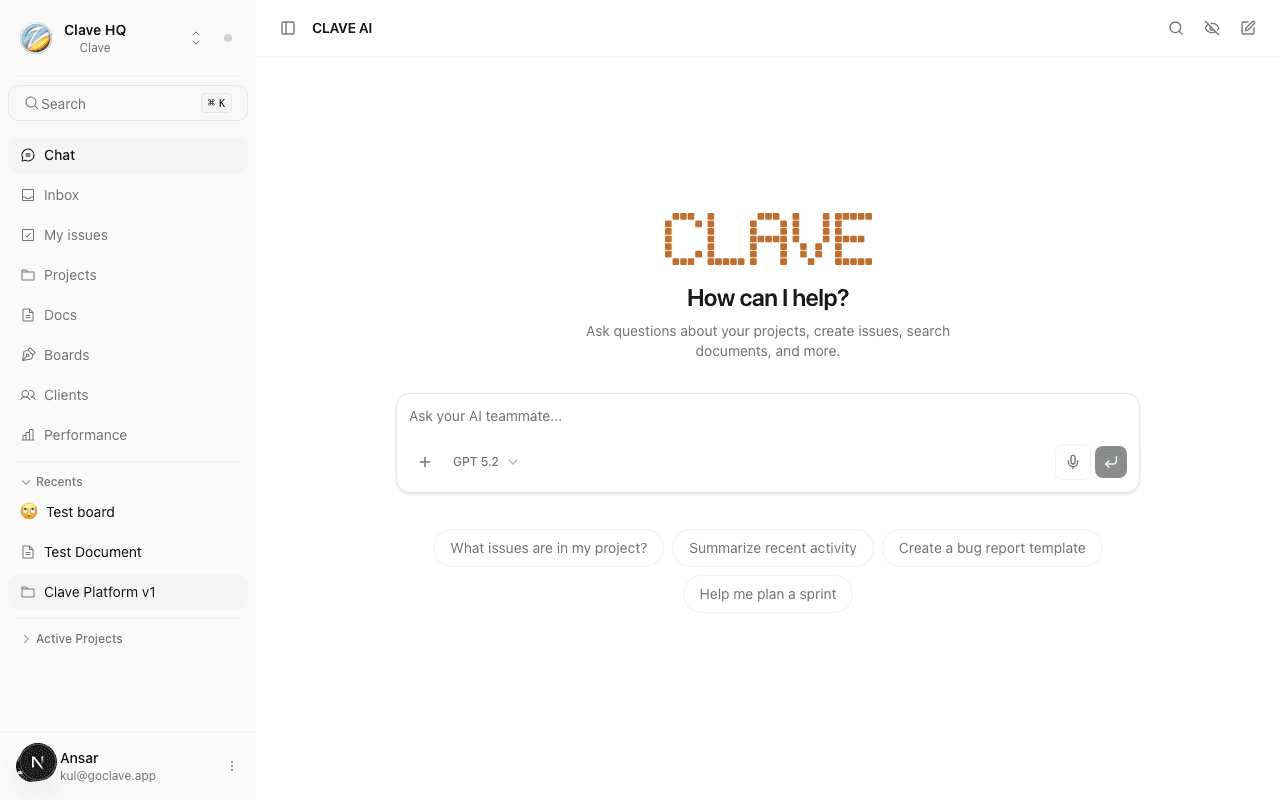
Voice
Dictate into the AI chat using your microphone — speech is transcribed and inserted as text.
The voice feature lets you dictate into the AI chat input instead of typing. Speak your message, stop recording, and your words are transcribed and inserted as text in the input field. From there you can review, edit, and send as usual.
Starting voice recording
There are two ways to start recording:
Click the microphone icon — In the AI chat input toolbar, click the microphone button on the right side of the input field.
Keyboard shortcut — Press Cmd+Shift+V (Mac) or Ctrl+Shift+V (Windows/Linux) when the chat input is active.
When recording starts, the microphone button changes appearance to indicate it is active.
Recording your message
Speak clearly into your microphone. You can take pauses — the recording continues until you stop it manually.
Maximum recording length: 20 minutes. If you reach the limit, recording stops automatically and transcription begins.
Maximum file size: 25 MB. Very long recordings may approach this limit. If your recording exceeds it, an error is shown and you will need to record again in shorter segments.
Stopping and transcribing
Click the microphone button again (or press Cmd+Shift+V) to stop recording. Transcription begins immediately — this typically takes a few seconds.
When transcription completes, the text appears in the chat input field. Review it before sending — transcription is accurate but not perfect, especially for technical terms, proper nouns, or background noise.
Editing the transcript
The transcribed text is fully editable. After it appears in the input:
- Click in the input field to position your cursor.
- Edit any words that were transcribed incorrectly.
- Press Enter to send, or continue typing to add more context.
Supported audio formats
Voice recording uses your browser's built-in audio capture. Clave accepts the following formats from your browser:
- WebM (with Opus codec) — used by Chrome and Firefox on desktop
- MP4 audio — used by Safari and Chrome on macOS/iOS
You do not need to configure this — Clave automatically uses the best format your browser supports.
Troubleshooting
Microphone not working — Make sure your browser has permission to access your microphone. Check your browser's site settings and allow microphone access for Clave.
Transcription error — If transcription fails, an error toast appears. Clave automatically retries up to three times. If it still fails after retries, try recording again. If the problem persists, check your internet connection.
Wrong words transcribed — Edit them directly in the input field before sending. For technical terms that are consistently mis-transcribed (like product names or code identifiers), type those parts manually.
Voice in documents
Voice input is also available in the document editor. When you are editing a document, you can toggle dictation to insert text at your cursor position. Look for the microphone button in the document editor toolbar, or press Cmd+Shift+V while the editor is focused.
Dictated text in documents is inserted at the cursor and can be edited like any other text.