Tools and actions
What the AI can do in your workspace — a complete list of AI tools.
The AI in Clave is not just a question-answering system. It can read your workspace data and take actions on your behalf. These capabilities are called tools.
You do not configure tools yourself — the AI chooses which tools to use based on what you ask. Just describe what you want in plain language.
How it works
When you send a message, the AI decides which tools to call to fulfill your request. For example:
- "What's the status of the authentication sprint?" → AI calls List sprints and Search issues
- "Create a bug for the broken login page" → AI calls Create issue (then asks for your approval)
- "Summarize the API design document" → AI calls Get document and summarizes the content
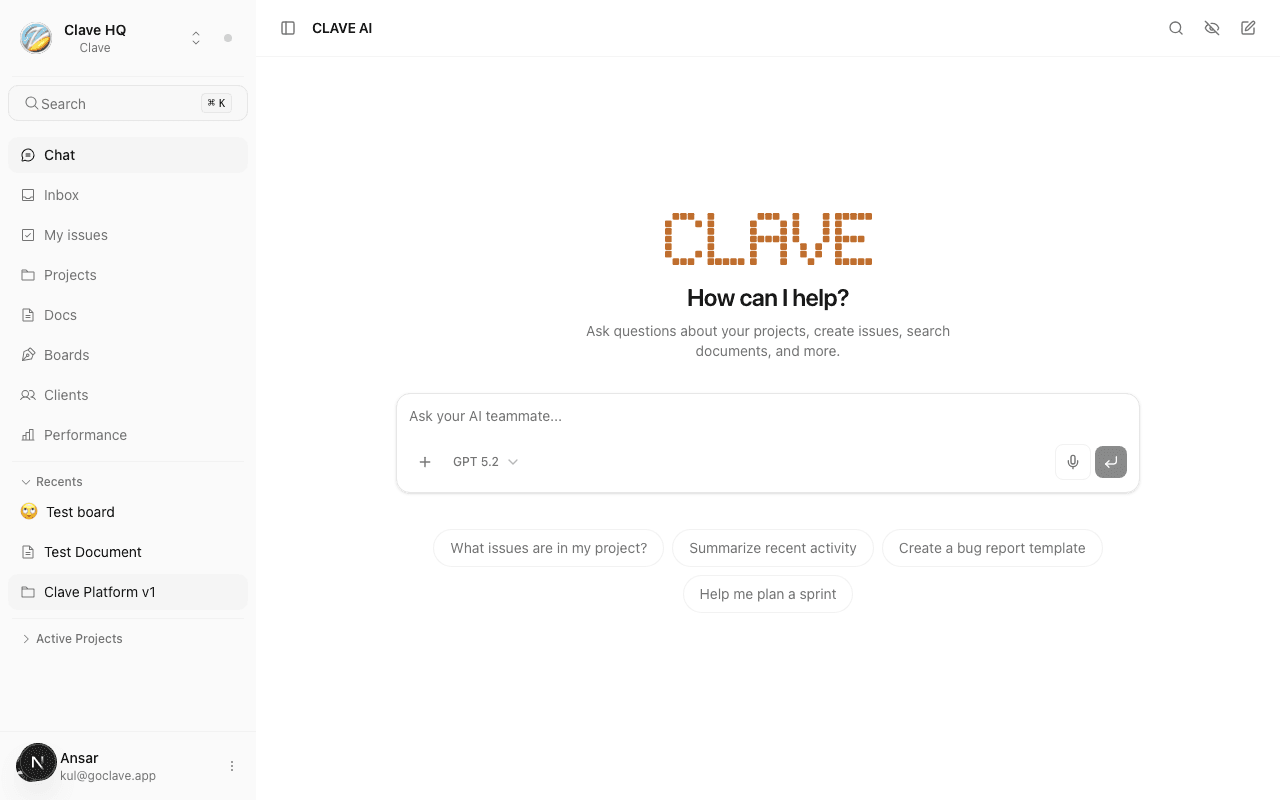
You can see which tools the AI used by looking at the collapsible tool calls in the chat message.
Read tools
These tools let the AI look up information in your workspace. They run automatically without any approval needed.
Search issues
Finds issues by text search or by filtering on status, priority, assignee, or project. Use this to ask questions like "show me all urgent bugs" or "what's assigned to me in the backend project?"
Get issue details
Retrieves full details for a specific issue — description, status, priority, assignee, labels, sub-issues, comments, and activity. Reference an issue by its identifier (like CLV-042) or by name.
List projects
Lists all projects in the workspace with issue progress stats, lead name, and dates. Respects your access permissions — you only see projects you have access to.
Get project details
Retrieves full details for a specific project including milestones, lead, description, and issue breakdown by status.
Search documents
Finds documents by title, optionally filtered by project.
Get document
Reads the full text content of a specific document. Large documents are summarized to fit within context limits.
List workspace members
Lists everyone in the workspace with their name, email, and role. Useful when you want to assign an issue or ask "who is the backend lead?"
List labels
Lists all labels available in the workspace, including name and color.
List sprints
Lists all sprints across projects with status, dates, and progress percentage. Can be filtered to active, planned, or completed sprints.
Get activity
Retrieves the activity log for a specific issue or project — status changes, assignments, comments, and other events.
Get notifications
Shows your recent notifications — mentions, assignments, status changes, and other alerts — with read/unread state.
Search project knowledge
Deep search within a specific project using a combination of semantic (meaning-based) and keyword search. Finds relevant issues, documents, comments, and indexed GitHub files even when exact keywords don't match. Best for questions like "what work has been done on the authentication system?"
Search code
Searches code in a connected GitHub repository using semantic search. Finds functions, classes, and code snippets by description. Only available for projects with a GitHub repository connected.
Global search
Searches across everything at once — issues, projects, documents, whiteboards, clients, tasks. Best for broad queries that span multiple categories.
Write tools
These tools make changes in your workspace. Some run immediately; others require your approval before executing.
Create issue
Creates a new issue with a title, description, status, priority, type, assignee, and labels. Requires approval before the issue is saved.
Update issue
Updates fields on an existing issue — title, description, status, priority, type, or assignee. Non-destructive updates (like changing priority from medium to high) run immediately. Marking an issue as done or cancelled requires approval.
Assign issue
Assigns or unassigns an issue to a workspace member. Runs immediately.
Batch update issues
Updates multiple issues at once — change their status or reassign them in a single operation. Always requires approval due to the broad impact.
Add comment
Adds a comment to an issue, task, or story. Runs immediately.
Create document
Creates a new document in the workspace, optionally with initial content and a project association. Runs immediately.
Create project
Creates a new project. Always requires approval before the project is saved.
Create label
Creates a new label with a name and color. Only workspace admins can create labels.
Generate whiteboard diagram
Generates a diagram — wireframe, flowchart, or architecture diagram — and draws it directly on a whiteboard. You specify the whiteboard and describe what you want. Runs immediately.
Triggering tools from chat
You do not need to know which tool to call. Just describe your request naturally:
"Find all bugs created this sprint in the mobile project"
"Draft a new issue for the slow dashboard load — mark it as a performance bug, high priority, assign it to the backend team"
"What documents exist for the v2 API project?"
"Create a flowchart of the user signup flow on the current whiteboard"
The AI selects the appropriate tools and, where approval is needed, surfaces the approval card before acting.