Collaboration
Draw together in real time and leave pinned comments on the canvas.
Whiteboards support real-time collaborative drawing. Your teammates' changes appear on the canvas instantly. You can also add pinned comments to specific locations on the canvas.
Real-time drawing
When you and a teammate both have a whiteboard open, you can draw at the same time. Each person's edits appear on the other's canvas within milliseconds, without any page reload.
Clave reconciles simultaneous edits at the element level — the last write for each element wins, using a version counter to break ties. This means two people can add shapes at the same time without conflict.
Presence avatars
Other users who currently have the whiteboard open appear as small avatars in the header. Hover over an avatar to see their name.
Comment pins
Comment pins let you attach threaded discussions to specific locations on the canvas, without changing the drawing itself.
Enable comment mode
Click the comment bubble icon (💬) in the whiteboard header to enable comment mode. The icon lights up to show it's active.
When comment mode is on:
- Existing comment pins appear as numbered badges on the canvas.
- You can click a pin to read and reply to its thread.
- You can add new pins by clicking on the canvas.
Add a comment pin
- Enable comment mode by clicking the comment icon in the header.
- In the Comments sidebar that appears on the right, click Add comment.
- Your cursor changes to a crosshair. Click anywhere on the canvas to place a pin.
- A comment input appears. Type your comment and press Enter (or click Submit).
A numbered badge appears on the canvas at the pin location, and the thread appears in the sidebar.
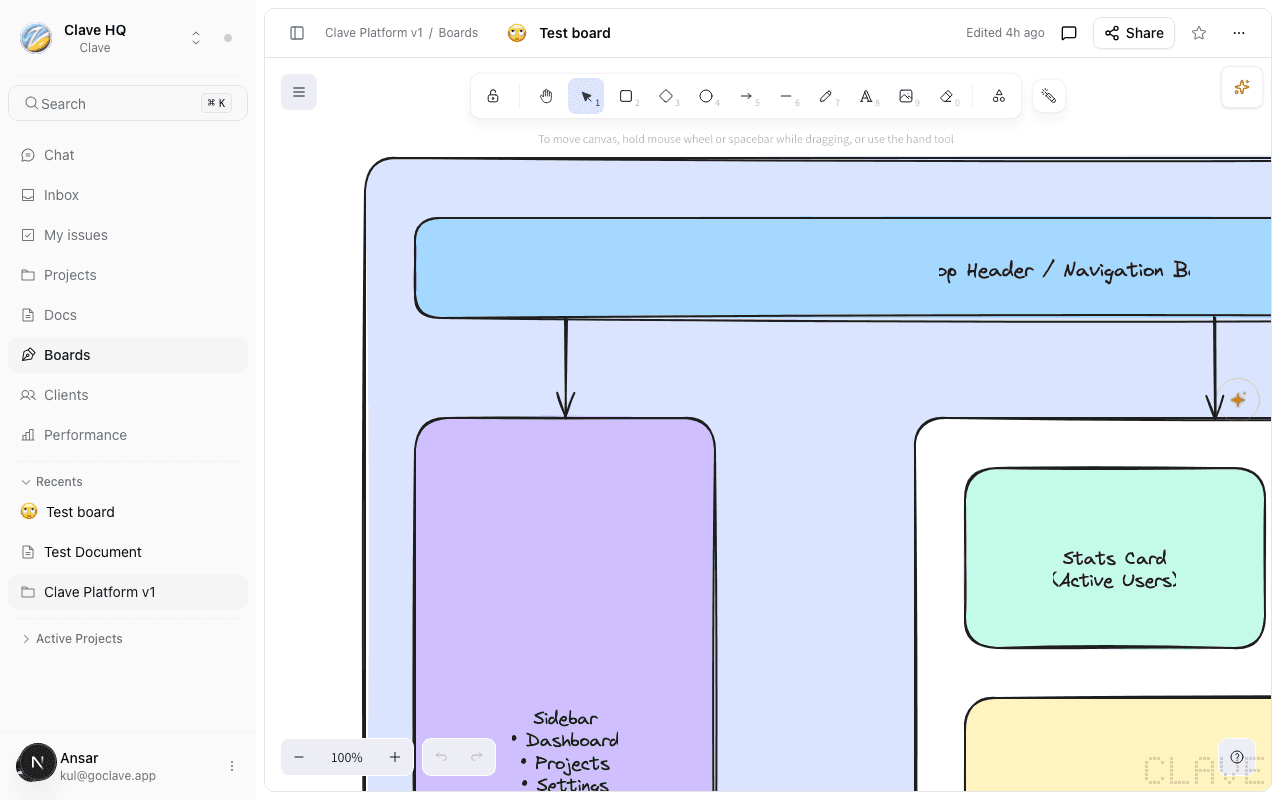
Read and reply to comment threads
- Click a pin badge on the canvas to select that thread. It highlights in the sidebar.
- Alternatively, click a thread directly in the sidebar.
- The thread detail view shows the original comment and any replies.
- Type in the reply input at the bottom and press Enter to reply.
@mention teammates
Type @ in a comment or reply to mention a teammate. They'll receive a notification in their Inbox with a link back to the whiteboard.
Resolve a thread
When a discussion is complete, click Resolve in the thread detail view. Resolved threads remain visible but appear with reduced opacity. Click Unresolve to reopen a resolved thread.
Edit or delete a comment
Hover over your own comment in the thread detail view to see the edit and delete icons.
Disable comment mode
Click the comment icon in the header again to exit comment mode. Pins and the sidebar are hidden while comment mode is off.
Comments and drawing
Comment mode and drawing mode can be active at the same time — you can draw shapes and leave comments without toggling between modes. The comment pin placement crosshair only activates after you click Add comment in the sidebar.