Sub-agents
Specialized AI personas in Clave — built-in presets and custom agents.
Sub-agents are AI personas configured for a specific job. While the main AI assistant is a generalist, sub-agents are tuned with focused instructions, specific tool access, and a particular knowledge scope. You invoke them from within the chat to get a specialist perspective.
Built-in presets
Every workspace starts with three built-in sub-agents. These are shared across the workspace — everyone can use them.
Project Manager
Best for: Sprint planning, issue decomposition, priority decisions, status reporting.
The Project Manager agent breaks down goals into concrete issues, prioritizes work, tracks progress, and generates structured sprint plans. It searches your existing issues and project data before creating anything new, so it avoids duplicates. Output is structured markdown with headers, issue lists, and sprint summaries.
Technical Writer
Best for: Documentation, specifications, summaries, onboarding guides.
The Technical Writer agent drafts clear, structured documents from technical information. It searches your existing documentation first to maintain consistent terminology and style. It produces complete sections — not fragments — with tables, code examples, and executive summaries where appropriate.
Code Reviewer
Best for: Analyzing code quality, identifying security issues, reviewing changes.
The Code Reviewer agent examines code for correctness, readability, security vulnerabilities, and maintainability. It categorizes findings by severity (Critical, Suggestion, Nitpick) with concrete code snippets for each suggestion. It searches connected GitHub repositories and documentation for context.
Using sub-agents in chat
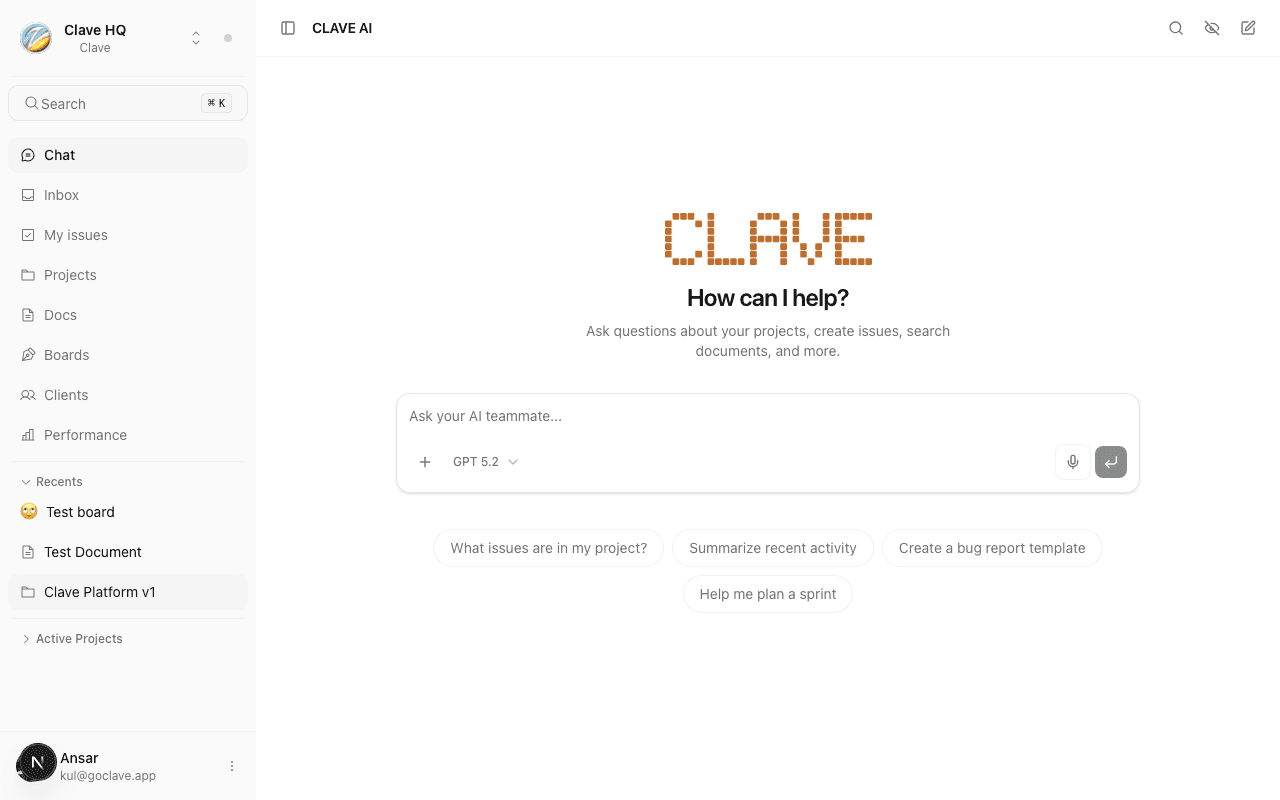
To invoke a sub-agent, type @ in the chat input and select the agent from the dropdown. Your message is then handled by that agent's persona and tools.
You can also select a sub-agent from the sub-agents button in the chat input toolbar. The agent's name appears in the chat header while it is active for that message.
Creating custom sub-agents
You can create your own sub-agents tailored to your team's specific needs.
How to create a custom sub-agent
- Go to Workspace settings → Sub-agents.
- Click New agent.
- Fill in the agent details:
- Name — a clear, descriptive name (e.g., "Customer Support Writer")
- Description — a short summary shown in the agent picker
- Avatar — an emoji or icon for visual identification
- Instructions — the system prompt that defines this agent's behavior, persona, and output format
- Model — leave blank to use the workspace default, or choose a specific model
- Enabled tools — select which workspace tools this agent can use
- Knowledge scope — choose which content types (issues, documents, comments, GitHub files) the agent searches
- Shared — if enabled, all workspace members can use this agent (admin only)
- Click Save.
Your new agent appears immediately in the agent picker in the chat.
Writing good instructions
The instructions field is the most important part of a custom agent. A few tips:
- Start with a clear role statement: "You are a [role] specializing in [domain]."
- List the agent's core responsibilities explicitly.
- Specify the output format you expect (headers, tables, bullet points, etc.).
- Add behavioral guidelines: what to do before acting, how to handle ambiguity.
Editing and deleting agents
To edit an agent, go to Workspace settings → Sub-agents and click the agent. Make your changes and click Save.
To delete an agent, open the agent settings and click Delete agent. Preset agents cannot be deleted.
Agent permissions
- Personal agents — visible only to you. You can create and edit them.
- Shared agents — visible to all workspace members. Only workspace admins can create or edit shared agents.
- Preset agents — built-in to every workspace. They can be configured but not deleted.