Creating Documents
Create, organize, and manage rich text documents in Clave.
Documents are rich-text pages you can create anywhere in your workspace. Use them for meeting notes, specs, runbooks, project briefs, or any long-form content that benefits from formatting, embeds, and real-time collaboration.
Create a new document
From the sidebar
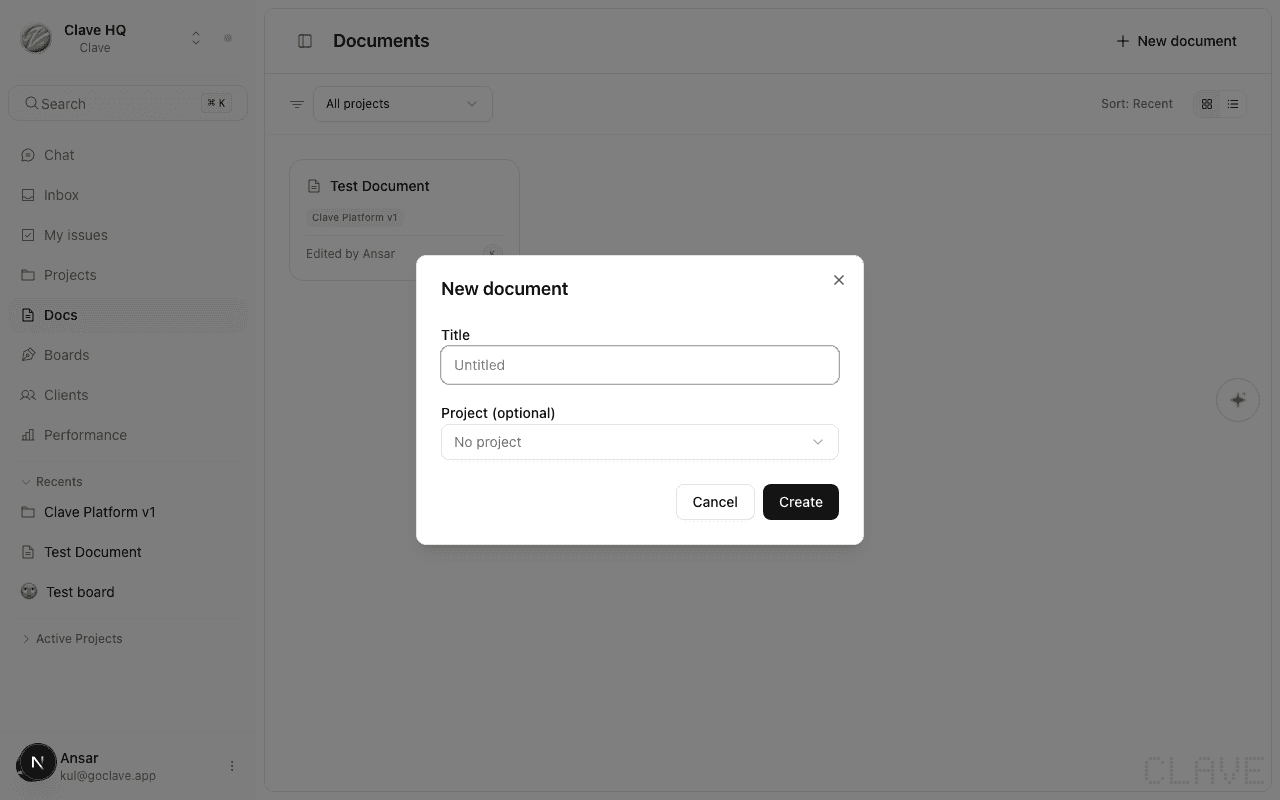
- Click Docs in the left sidebar. The Documents page opens, showing all documents in your workspace.
- Click New document in the top-right corner. A dialog appears.
- Enter a title (or leave it blank — the document will be called "Untitled").
- Optionally assign the document to a project from the dropdown. This links the document to a project so it appears in that project's Knowledge tab.
- Click Create. The document opens immediately in the editor.
From a project
Documents can also be created from the Knowledge tab inside a project. Any document created there is automatically linked to that project.
Set a title and icon
At the top of every document you'll find the document hero — the area above the editor content.
- Title — Click the title field and type your document name. The title saves automatically as you type.
- Emoji icon — Click the emoji icon (default: 📄) to open the emoji picker. Choose an emoji to personalize the document and make it easier to identify in lists.
Pressing Enter in the title field moves focus into the editor body, ready for you to start writing.
Add a cover image
Cover images give your document a visual header.
- Hover over the title area. The Add cover button appears below the title.
- Click Add cover and select an image file from your computer (max 5 MB, any image format).
- The image appears as a full-width banner above the title.
To reposition the cover image:
- Hover over the cover image to reveal the Reposition button.
- Click Reposition and drag the image up or down to adjust the focal point.
- Click Save position to confirm, or Cancel to revert.
To change or remove the cover image:
- Hover over the cover image and click Change cover to upload a new image.
- Click Remove to delete the cover image entirely.
Favorite a document
Click the star icon in the document header to add the document to your favorites. Favorited documents appear at the top of the sidebar for quick access.
Document actions
Click the three-dot menu (⋯) in the document header for additional options:
| Action | Description |
|---|---|
| Copy link | Copies a link to the document to your clipboard |
| Delete document | Permanently removes the document |
You can also rename, duplicate, or share a document directly from the Documents list by right-clicking a card or hovering and clicking the ⋯ icon.
Organize documents
On the Documents page, you can filter and sort your documents:
- Filter by project — Use the project dropdown to show only documents linked to a specific project.
- Sort — Choose between Recent (last edited), Title (alphabetical), and Project.
- View — Switch between card grid view and list view using the toggle in the top-right toolbar.
Delete a document
- Open the document and click ⋯ in the header.
- Select Delete document.
- Confirm in the dialog. Deletion is permanent and cannot be undone.
Alternatively, right-click a document card on the Documents page and select Delete.