Drawing Tools
Use shapes, text, freehand drawing, and AI diagram generation on your whiteboard.
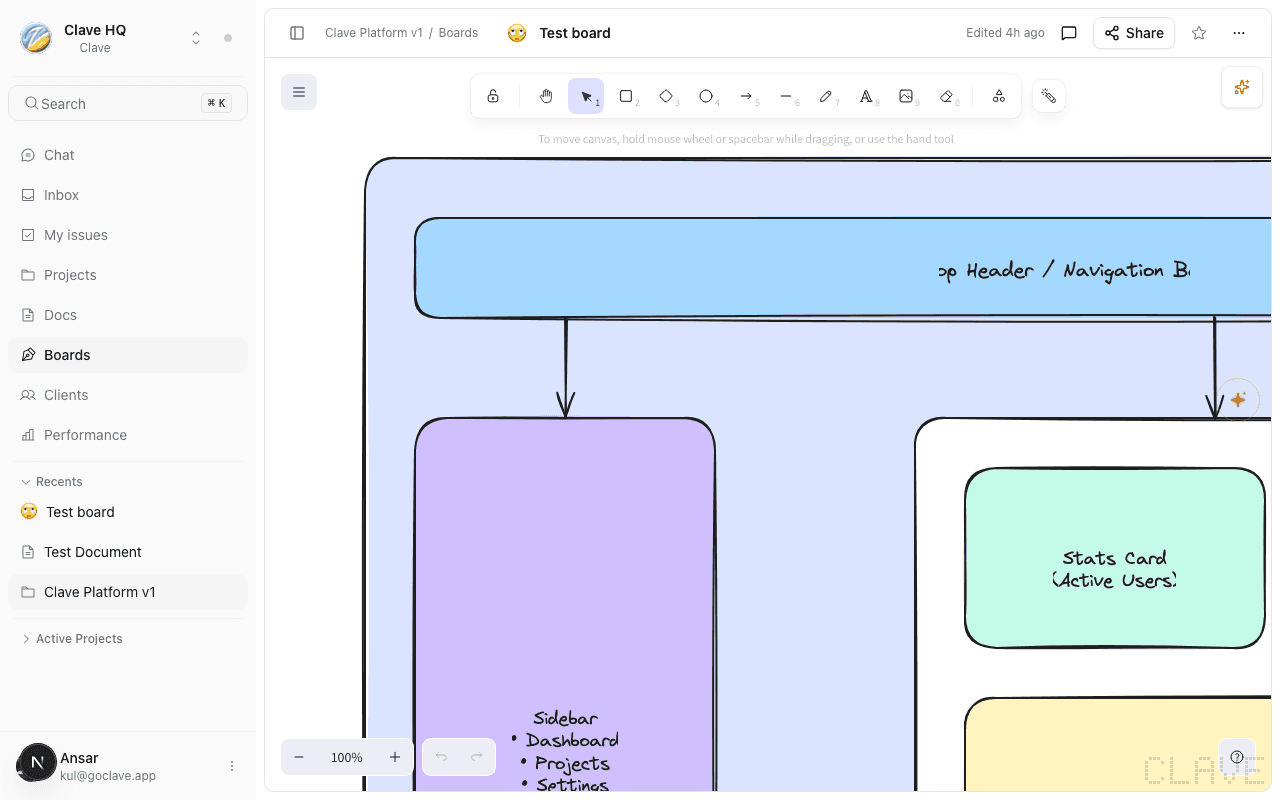
Clave whiteboards are powered by Excalidraw, a full-featured canvas drawing tool. The toolbar on the left side of the canvas gives you access to all drawing tools.
Tool palette
Select a tool from the left toolbar or use the keyboard shortcuts below.
| Tool | Shortcut | What it does |
|---|---|---|
| Selection | V or 1 | Select and move elements |
| Rectangle | R or 2 | Draw a rectangle |
| Diamond | D or 3 | Draw a diamond shape |
| Ellipse | O or 4 | Draw a circle or ellipse |
| Arrow | A or 5 | Draw an arrow between shapes |
| Line | L or 6 | Draw a straight line |
| Freehand | P or 7 | Draw freehand with a pen |
| Text | T or 8 | Add a text element |
| Image | 9 | Insert an image from your computer |
| Frame | F | Create a named frame grouping elements |
| Laser pointer | K | Temporary highlighting pointer (not saved) |
| Eraser | E | Erase drawn elements |
Drawing shapes
- Select a shape tool (rectangle, diamond, or ellipse).
- Click and drag on the canvas to draw the shape.
- Release to finish. The shape appears selected.
Tip: Hold Shift while dragging to constrain the shape to equal width and height (creates a square or circle).
Arrows and connectors
- Select the Arrow tool (
A). - Click and drag from a source shape to a target shape. When you hover near the edge of a shape, a connection point appears — release there to create a bound connector.
- Arrows bound to shapes move automatically when you move the shapes.
To draw a free-floating arrow (not bound to any shape), click and drag on empty canvas space.
Text
- Select the Text tool (
T). - Click anywhere on the canvas to place a text block. An editable text input appears.
- Type your text. Press Escape when done.
You can also double-click any shape to add text inside it.
Freehand drawing
Select the Freehand tool (P) and click and drag to draw freely. Useful for annotations, arrows, and rough sketches. Use a stylus for best results.
Images
- Select the Image tool (
9). - Click on the canvas. A file picker opens.
- Select an image from your computer. It appears on the canvas at a default size and can be resized by dragging the corners.
You can also paste images directly from your clipboard onto the canvas.
Styling elements
When an element is selected, the style controls appear in the right panel:
- Stroke color — Change the outline color
- Background color — Fill the shape with a color
- Stroke width — Change line thickness (thin, medium, bold, extra bold)
- Stroke style — Solid, dashed, or dotted
- Fill style — None, hatch, cross-hatch, or solid fill
- Opacity — Adjust transparency (0–100%)
- Roundness — Toggle rounded corners on shapes
- Edge style — For arrows: sharp, curved, or elbow routing
- Font — For text: Virgil (handwritten), Helvetica, or Cascadia (monospace)
- Font size — Small, medium, large, extra large
- Text alignment — Left, center, right
Canvas background
To change the canvas background color, open the main menu (hamburger icon, top-left of canvas) and select Change canvas background.
Main menu
Click the ☰ icon in the top-left of the canvas to access:
| Action | Description |
|---|---|
| Load scene | Load an .excalidraw file from your computer |
| Save to active file | Export as .excalidraw file |
| Export | Export as PNG, SVG, or clipboard |
| Save as image | Quick export as PNG |
| Search | Search for elements by text content |
| Help | Keyboard shortcut reference |
| Clear canvas | Remove all elements |
| Change canvas background | Set background color |
AI whiteboard tools
The AI toolbar appears in the top-right corner of the canvas (the sparkles icon). It provides three AI-powered actions:
Generate diagram
Describe a diagram in plain language and Clave draws it for you.
- Click the AI toolbar and select Generate diagram.
- Type your description — for example, "User authentication flow with sign-in, OAuth, and session management."
- Click Generate. Shapes and connections appear on the canvas progressively.
Explain diagram
Select elements on the canvas and ask the AI to explain what the diagram shows.
- Select the elements you want explained (or leave nothing selected to explain everything).
- Click the AI toolbar and select Explain diagram.
- The AI provides a written explanation in a dialog.
Clean up layout
Automatically reorganize cluttered elements into a tidy layout.
- Select the elements you want to reorganize (or leave nothing selected to reorganize everything).
- Click the AI toolbar and select Clean up layout.
- Clave rearranges the elements with better spacing and alignment.
Keyboard shortcuts
| Action | Shortcut |
|---|---|
| Undo | Cmd/Ctrl+Z |
| Redo | Cmd/Ctrl+Shift+Z |
| Copy | Cmd/Ctrl+C |
| Paste | Cmd/Ctrl+V |
| Duplicate | Cmd/Ctrl+D |
| Delete | Delete or Backspace |
| Group selection | Cmd/Ctrl+G |
| Ungroup | Cmd/Ctrl+Shift+G |
| Send to back | Cmd/Ctrl+Shift+[ |
| Bring to front | Cmd/Ctrl+Shift+] |
| Lock element | Cmd/Ctrl+Shift+L |
| Zoom in | Cmd/Ctrl+= |
| Zoom out | Cmd/Ctrl+- |
| Fit to screen | Shift+1 |