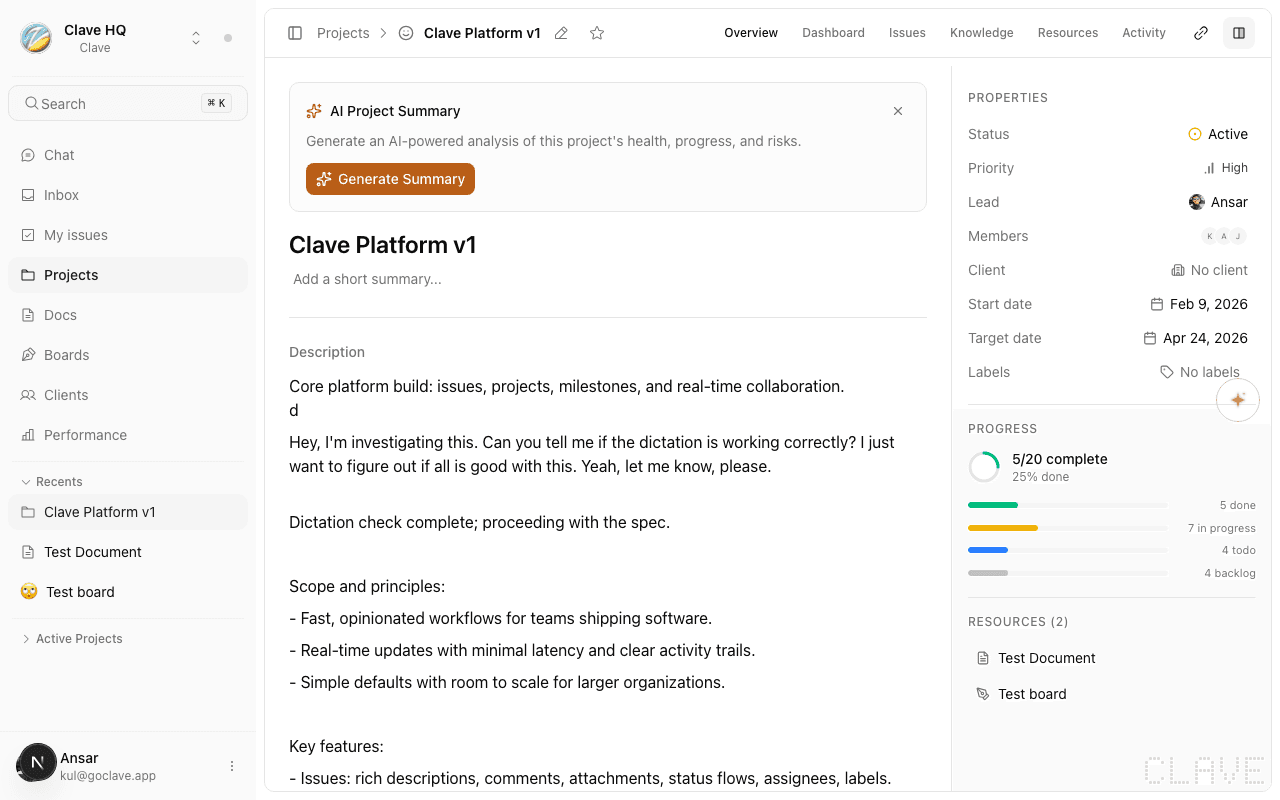
Project Dashboard
Track your project's health, issue progress, and team activity from the project dashboard.
The project dashboard gives you a real-time view of your project's health. Open any project and click the Dashboard tab to access it.
Overview metrics
At the top of the dashboard, five KPI tiles summarize the project's current state:
| Metric | What it shows |
|---|---|
| Overdue open | Number of open issues that are past their due date. |
| Blocked open | Open issues that have blocking relations and can't progress. |
| Cycle time P50 | The median number of days it takes an issue to go from open to done. |
| Scope delta | Issues created minus issues completed in the last 30 days. A positive number means scope is growing faster than delivery. |
| Cancellation rate | Percentage of closed issues that were cancelled rather than completed. |
Completion chart
Below the KPI tiles, a circular progress chart shows overall project completion as a percentage. Below the chart you'll see the exact count: "X of Y issues done".
Issues by status
To the right of the completion chart, a bar chart breaks down issues by each status: Triage, Backlog, Todo, In progress, In review, Done, and Cancelled. Each bar shows the count for that status.
Issues by assignee
Below the main chart section, a bar chart shows how many issues each team member has assigned, along with how many they've completed and their individual completion rate.
Project updates
The updates section lets your team post status updates to keep everyone informed.
Posting an update
- Click the text area at the top of the updates section.
- Select a health indicator for the update:
- On track — Work is progressing as planned.
- At risk — There are concerns that could affect the timeline.
- Off track — The project is behind or blocked.
- Type your update message in the text area.
- Click Post update or press Cmd+Enter to publish.
Updates appear in a chronological feed below the form, each showing the health indicator, the message, the author's name, and the timestamp.
Knowledge tab
The Knowledge tab collects all documents and whiteboards linked to this project. Use it as a central hub for project-related content.
- Filter by All, Docs, or Boards.
- Sort by Recent, Title, or Type.
- Switch between Cards and List view using the toggle in the top-right.
- Click New to create a new document or board directly linked to this project.
Clicking any item opens it in the full document or whiteboard editor.
Resources tab
The Resources tab stores files and external links associated with this project.
- Filter files by All, Images, Documents, PDFs, or Links.
- Switch between Grid and List view.
- Click Add file to upload a file or add an external link URL.
Clicking a file opens it in a new tab.
Activity tab
The Activity tab shows a chronological feed of all changes made to the project's issues — status changes, assignments, comments, and more.