Creating Whiteboards
Create and manage visual whiteboards for diagrams, brainstorms, and planning.
Whiteboards are infinite canvas spaces for visual work. Use them for diagramming, wireframing, brainstorming, architecture planning, or any work that benefits from a free-form visual surface.
Create a new whiteboard
From the sidebar
- Click Boards in the left sidebar. The Boards page opens, showing all whiteboards in your workspace.
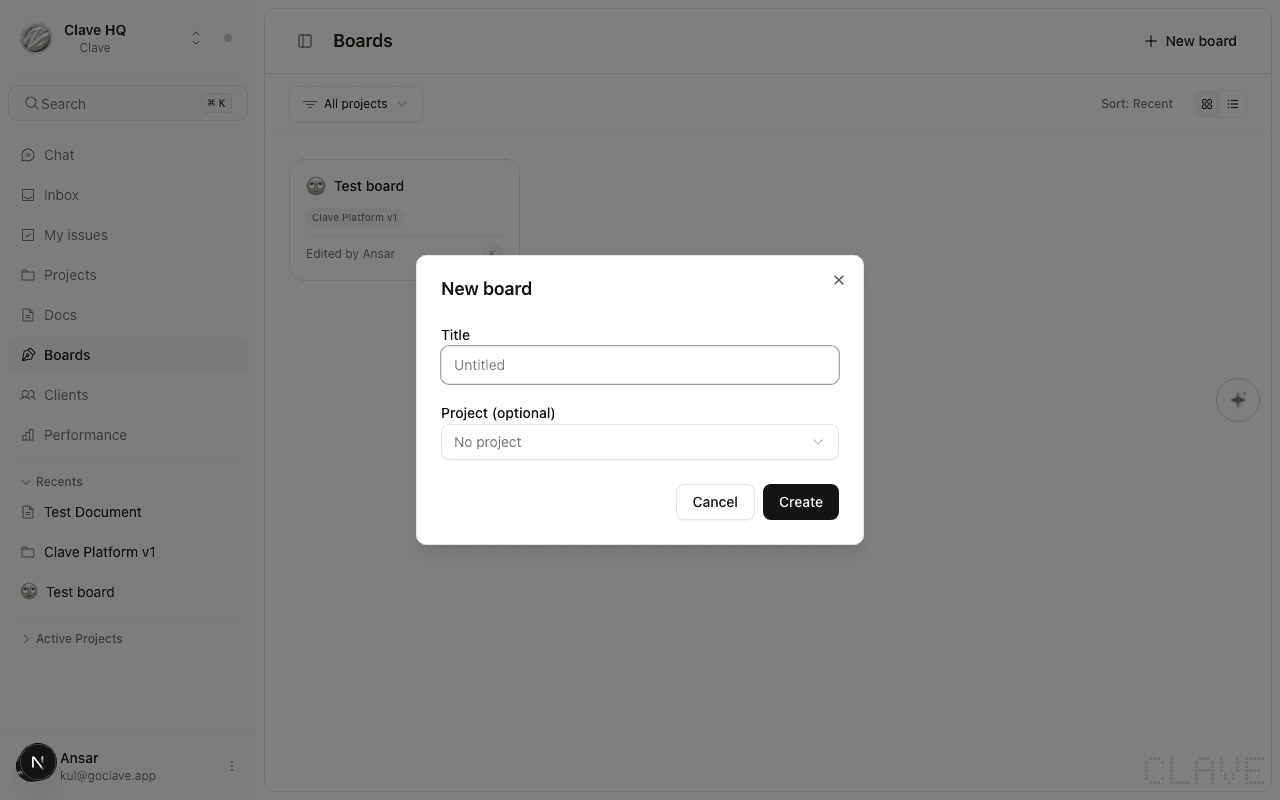
- Click New board in the top-right corner. A dialog appears.
- Enter a title (or leave it blank — the board will be called "Untitled").
- Optionally assign the board to a project. This links it to a project so it appears in that project's views.
- Click Create. The whiteboard opens immediately.
Set a title and emoji
- Title — Click the board title in the header to edit it inline. Press Enter or click elsewhere to save.
- Emoji icon — Click the emoji icon (or the pen icon if no emoji is set) in the header to open the emoji picker. Choose an emoji to identify the board visually.
Canvas basics
When you first open a whiteboard, you see an empty infinite canvas.
Navigate the canvas
| Action | How to do it |
|---|---|
| Pan (scroll) | Hold Space and drag, or use the scroll wheel |
| Pan (touchpad) | Two-finger scroll |
| Zoom in/out | Scroll while holding Cmd/Ctrl, or use the zoom controls in the toolbar |
| Fit to screen | Press Shift+1 or use the zoom dropdown |
| Select all | Cmd/Ctrl+A |
Select elements
- Click an element to select it.
- Click and drag on empty canvas space to draw a selection rectangle.
- Hold Shift and click to add elements to a selection.
Favorite a whiteboard
Click the star icon in the whiteboard header to favorite it. Favorited boards appear at the top of the sidebar.
Whiteboard actions
From the Boards list, right-click a board card or hover and click ⋯ to access:
| Action | Description |
|---|---|
| Rename | Edit the board title inline |
| Copy link | Copy a link to the board |
| Share | Open the Share dialog |
| Duplicate | Create a copy of the board and all its content |
| Delete | Permanently remove the board |
From within the board, click ⋯ in the header for Copy link and Delete whiteboard options.
Save indicator
Clave saves your whiteboard automatically. A Saving... indicator appears in the top-right area of the canvas when changes are being written. A Saved indicator confirms the save completed. If you close the tab before the indicator appears, your most recent changes are still flushed on unmount.
Delete a whiteboard
- Open the board and click ⋯ in the header.
- Select Delete whiteboard.
- Confirm in the dialog. Deletion is permanent and cannot be undone.