Creating Projects
Learn how to create and configure a project in Clave to organize your team's work.
Projects are the top-level containers for your team's work in Clave. Each project groups related issues, sprints, documents, boards, and files in one place.
Creating a new project
There are two ways to create a project: quick create and full create.
Quick create
- Navigate to the Projects section in the sidebar.
- Click the New project button in the top-right corner of the projects list.
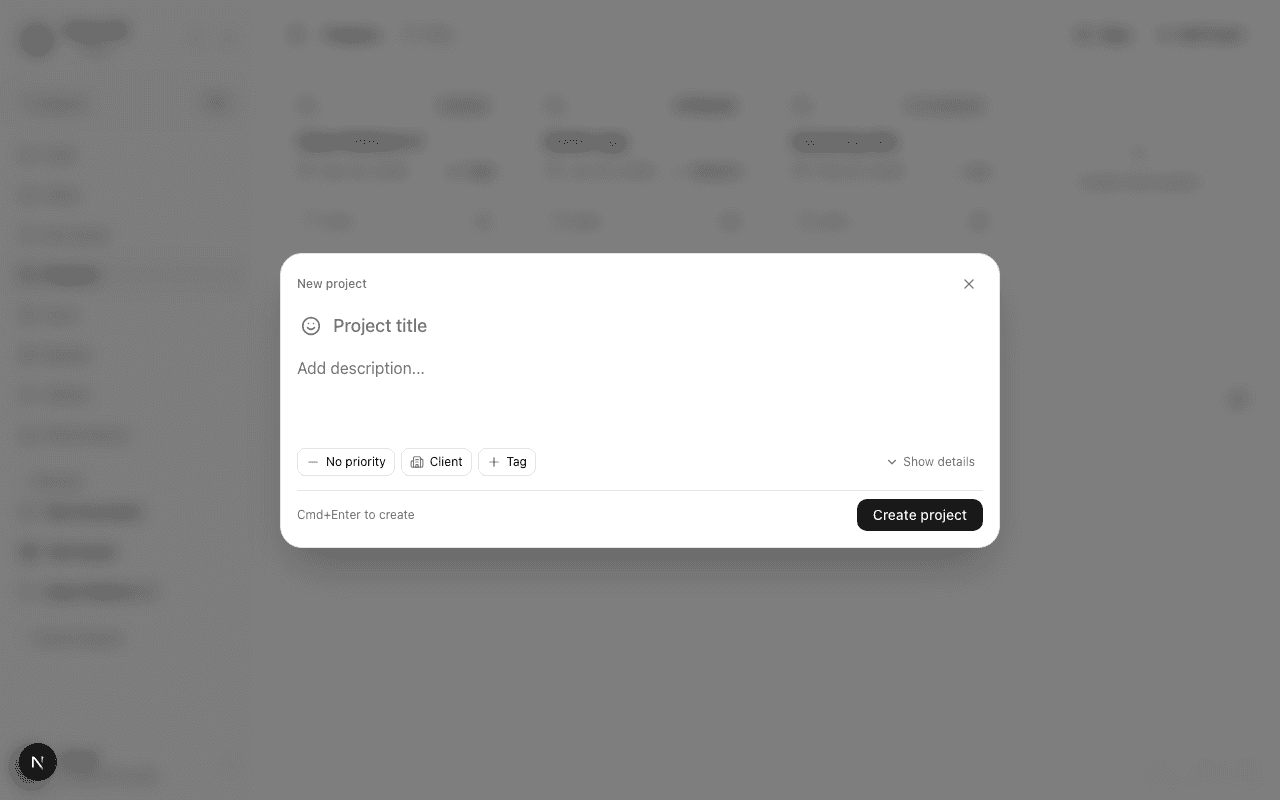
- A compact creation modal appears. Type a project title — this is the only required field.
- Optionally click the emoji icon to the left of the title field to pick an icon for your project.
- Use the property chips along the bottom to set Priority, Client, and Tags before creating.
- Click Create project or press Cmd+Enter to save.
Expanded create (full details)
In the quick create modal, click Show details to reveal additional fields before saving.
The full set of fields includes everything in the table below.
Project fields
| Field | Description |
|---|---|
| Title | The name of your project. Required. |
| Icon | An emoji displayed next to the project name throughout the app. |
| Summary | A one-line description shown in project listings. |
| Description | A rich-text description for full project context. |
| Priority | No priority, Low, Medium, High, or Urgent. |
| Status | Backlog, Planned, Active, Completed, or Cancelled. |
| Lead | The workspace member responsible for the project. |
| Client | A client from your workspace CRM, if applicable. |
| Start date | When work on this project begins. |
| End date | The target completion date. |
| Methodology | Linear, Sprints, or Kanban — controls how issues are structured. |
| Tags | Free-form labels to categorize the project. |
Project statuses
- Backlog — Not yet started or prioritized.
- Planned — Scheduled for upcoming work. This is the default when creating a new project.
- Active — Work is currently in progress.
- Completed — The project has been delivered.
- Cancelled — The project was stopped or deprioritized.
Project methodology
When creating or editing a project, you can choose a methodology that controls how its issues are organized:
- Linear — Issues tracked in a flat list, ordered by priority or status.
- Sprints — Issues organized into time-boxed sprint cycles.
- Kanban — Issues arranged on a board by status columns.
You can change the methodology later from the project's settings.
Editing a project
- Open the project from the sidebar or the projects list.
- Click the project name in the header to open the Edit project dialog.
- Update any fields and click Save changes.
The edit dialog includes all project fields: name, description, status, priority, methodology, client, start date, and end date.
Adding team members
From the project detail page, open the Overview tab to see the team roster. Project members are workspace members who have been added to the project.
To add a member, click Add member in the team section and select from the workspace member list.
Assigning a lead
The project lead is the primary owner responsible for the project's progress. Set the lead during creation by clicking the Lead picker in the expanded details section, or update it later in the edit dialog.