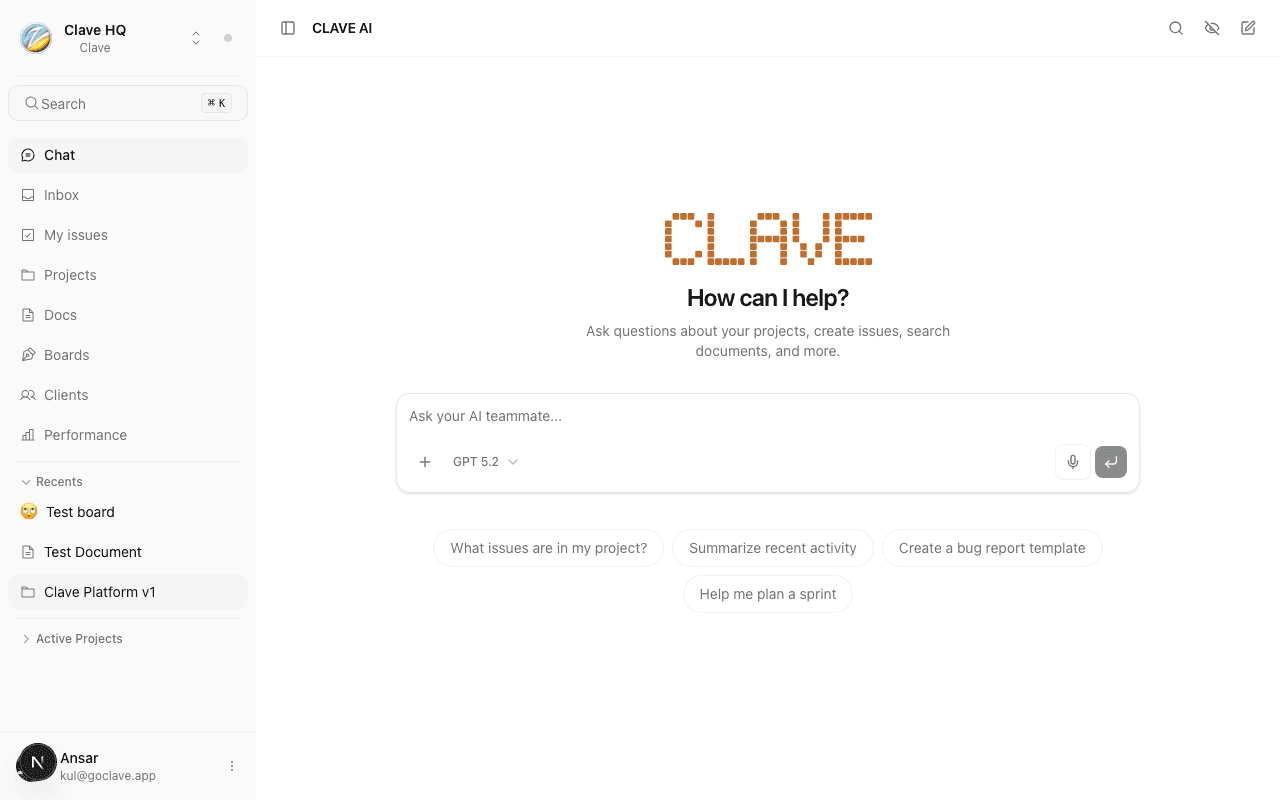
AI Overview
How AI works in Clave — your workspace-aware thinking partner.
Clave is AI-native from the ground up. Unlike apps that bolt a chatbot on the side, Clave's AI understands your actual workspace — it knows your projects, issues, documents, sprints, and team members. You can ask it to find things, explain things, and take action on your behalf.
This section covers everything the AI can do and how to use it.
What makes Clave AI-native
The AI in Clave is connected to your workspace at all times. When you ask a question, it searches your issues, reads your documents, and checks your project data before answering. It does not guess — it works from what is actually there.
When you ask it to do something — create an issue, update a status, add a comment — it acts directly in your workspace. You stay in the loop through an approval step for consequential actions.
AI capabilities at a glance
Chat
A full conversational AI sidebar and dedicated chat page. Ask questions, get summaries, work through problems — all with workspace context.
Tools and actions
Over 20 workspace tools the AI can use: search issues, read documents, create issues, update statuses, add comments, generate diagrams, and more.
Sub-agents
Specialized AI personas for different jobs. Built-in presets for project management, writing, and code review. Build your own with custom instructions.
Skills
Composable instruction sets that shape how the AI behaves. Enable, disable, and create skills to tune the AI for your team's workflow.
Inline AI
AI inside the document editor. Press Cmd+I or select text to trigger rewrites, summaries, translations, and improvements without leaving the page.
Issue AI
AI built into the issue workflow. Auto-triage on creation, AI-drafted descriptions, duplicate detection, and @AI replies in comments.
Voice
Dictate into any chat input. Your speech is transcribed and inserted as text — no typing required.
How AI accesses your workspace
The AI can read and act on:
- Issues — titles, descriptions, status, priority, assignees, labels, comments
- Projects — details, milestones, sprints, issue stats
- Documents — full text content
- Whiteboards — board state and diagrams
- Notifications — your unread alerts
- Team members — who is in the workspace and their roles
- GitHub repos — indexed code when a repo is connected to a project
Approval for consequential actions
Some AI actions require your explicit approval before they execute. When the AI wants to create an issue, mark an issue as done, or create a project, it shows an approval card in the chat. You click Approve or Reject before anything changes in your workspace.
Less consequential actions — like updating a status to "in progress" or adding a comment — execute immediately.
Rate limiting
AI usage is subject to rate limits that vary by plan. If you reach your limit, a banner appears in the chat interface. Usage resets on a rolling basis.